Quick Help · Step-by-step guide
How to Set Up Microsoft Authenticator
When you sign in to Microsoft 365, your password is the first step. A tap on your phone is the second. The Microsoft Authenticator app handles that tap, so a stolen password alone can't get into your email. Setup takes about five minutes.
Before you start
- • Your phone, charged and connected to the internet.
- • A computer, so you can scan a code from its screen.
- • Your work email address and password.
- • About five minutes.
Only approve a sign-in you started. If your phone asks you to approve a sign-in out of the blue, tap No, it's not me and call us. It means someone else has your password.
Set up Authenticator
- 1
Install Microsoft Authenticator on your phone
Open the App Store on an iPhone or Google Play on an Android phone. Search for Microsoft Authenticator and install it. The publisher is Microsoft Corporation. - 2
Sign in on your computer
On your computer, go to aka.ms/mfasetup and sign in with your work email address and password. If you see More information required, click Next.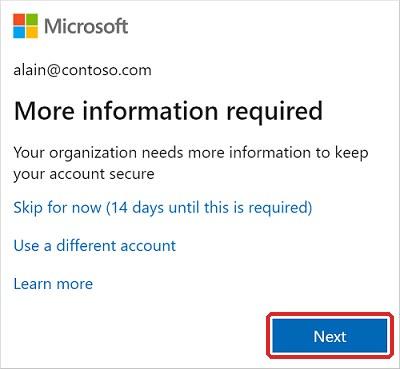
- 3
Click Next until you see a QR code
The page says Start by getting the app. You already have it, so click Next, then Next again. A square QR code appears. Leave this page open.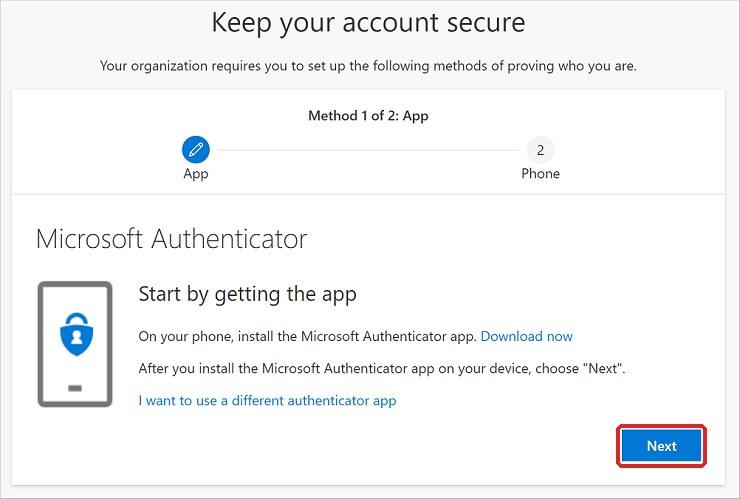
If you land on a Security info page instead, click Add sign-in method, choose Microsoft Authenticator, and continue from here. - 4
Add your work account in the app
Open Microsoft Authenticator on your phone. Allow notifications when it asks. Tap the + button (or Add account), choose Work or school account, then tap Scan QR code. Allow the camera when it asks.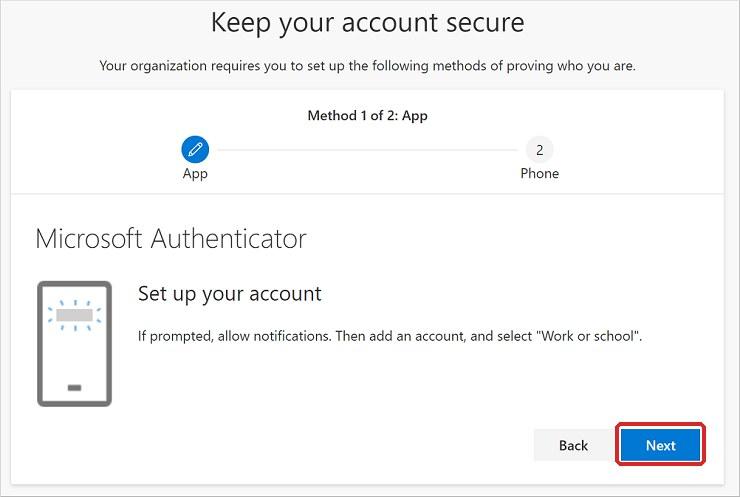
- 5
Scan the code on your computer screen
Point your phone at the QR code on your computer. Your work account appears in the app. Click Next on your computer.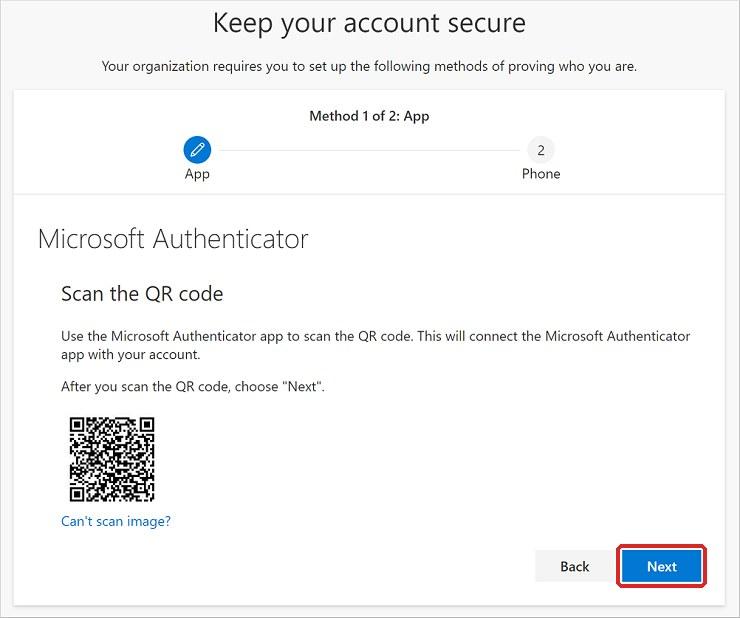
- 6
Approve the test sign-in
Your computer shows a two-digit number. Your phone asks you to enter it. Type the number and tap Yes. When your computer says the notification was approved, click Next, then Done. You're set up.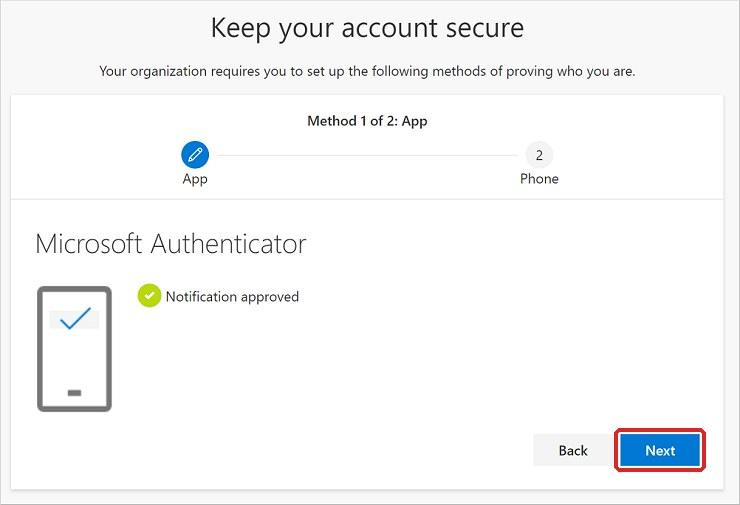
Your screen may also show the two-digit number while it waits for your phone.
Getting a new phone
Your work account lives on your old phone. Move it before you reset or trade in the old phone, while the old one can still approve your sign-in.
- 1
Install Authenticator on the new phone
Keep the old phone for now. Install Microsoft Authenticator on the new phone from the App Store or Google Play. - 2
Open your Security info page
On your computer, go to mysignins.microsoft.com/security-info and sign in. Approve the sign-in with your old phone. - 3
Add the new phone
Click Add sign-in method and choose Microsoft Authenticator. Follow steps 3 to 6 above with the new phone. - 4
Remove the old phone
Back on the Security info page, find the old phone in the list and click Delete. Now you can reset or trade in the old phone.
If something doesn't work
- My phone never shows the sign-in request
- Open Microsoft Authenticator. A waiting request often appears as soon as the app opens. Then check that notifications for Authenticator are turned on in your phone's settings, and that the phone has a Wi-Fi or cellular connection.
- The QR code won't scan
- Make the browser window bigger, or zoom in, so the code fills more of the screen. Hold the phone steady about a foot away. If it still won't scan, click Can't scan image? under the code. It shows a code and a URL you can type into the app instead.
- I lost my phone, or I already reset it
- Call us at 863-301-4011. Once we confirm who you are, we clear your old sign-in methods. Then you set up Authenticator again from step 1. Nobody can do this for you without talking to you first, which is what keeps your account safe.
- The app asks me to sign in to my account again
- This happens after you restore Authenticator from a backup onto a new phone. Work accounts need you to tap the account and sign in once more. If that fails, use the new phone steps above.
Screenshots are from Microsoft's support article Set up Security info from a sign-in page (support.microsoft.com). Your screen may look slightly different, but the button names will match.
Need a hand?
Call Mid Florida IT and a technician will walk you through it.