Quick Help · Step-by-step photo guide
How to Switch Windows 11 Out of S Mode
S mode only lets you install apps from the Microsoft Store. Follow these steps to switch to regular Windows 11 so you can install other programs, such as a printer tool, Zoom, or Chrome. This usually takes about five minutes.
Before you start
- • It is free. Microsoft does not charge for this switch.
- • You need an internet connection.
- • Sign in to the Microsoft Store with a Microsoft account (the same kind used for Outlook, Xbox, or OneDrive).
- • A restart is not usually needed. Restart only if Windows asks you to.
This change is permanent. Once you switch out of S mode, you cannot turn S mode back on.
- 1
Open Settings
Click the Start button (the Windows logo) on the taskbar, then click Settings (the gear icon). Or press the Windows logo key and the letter I at the same time.
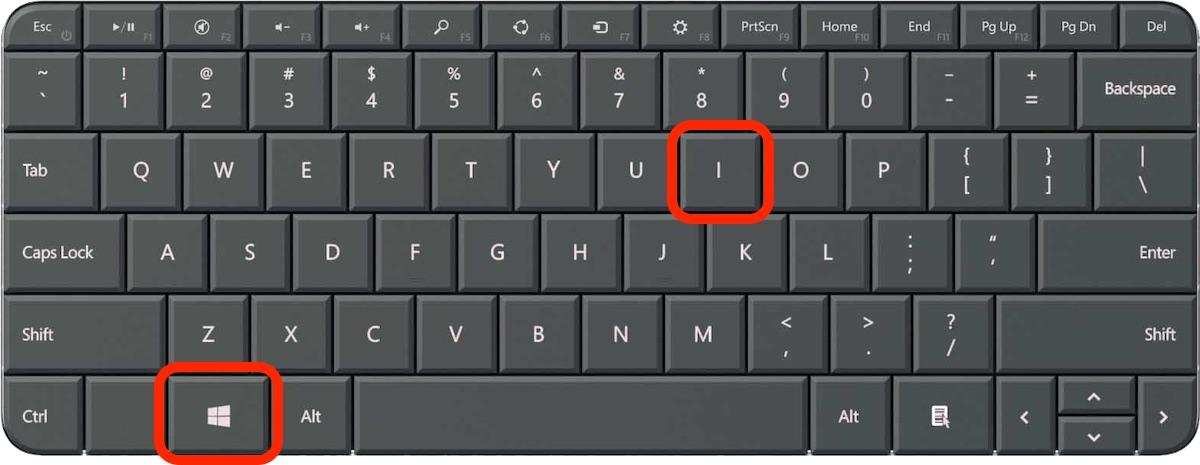
Press the Windows logo key and the letter I together to open Settings. - 2
Go to System, then Activation
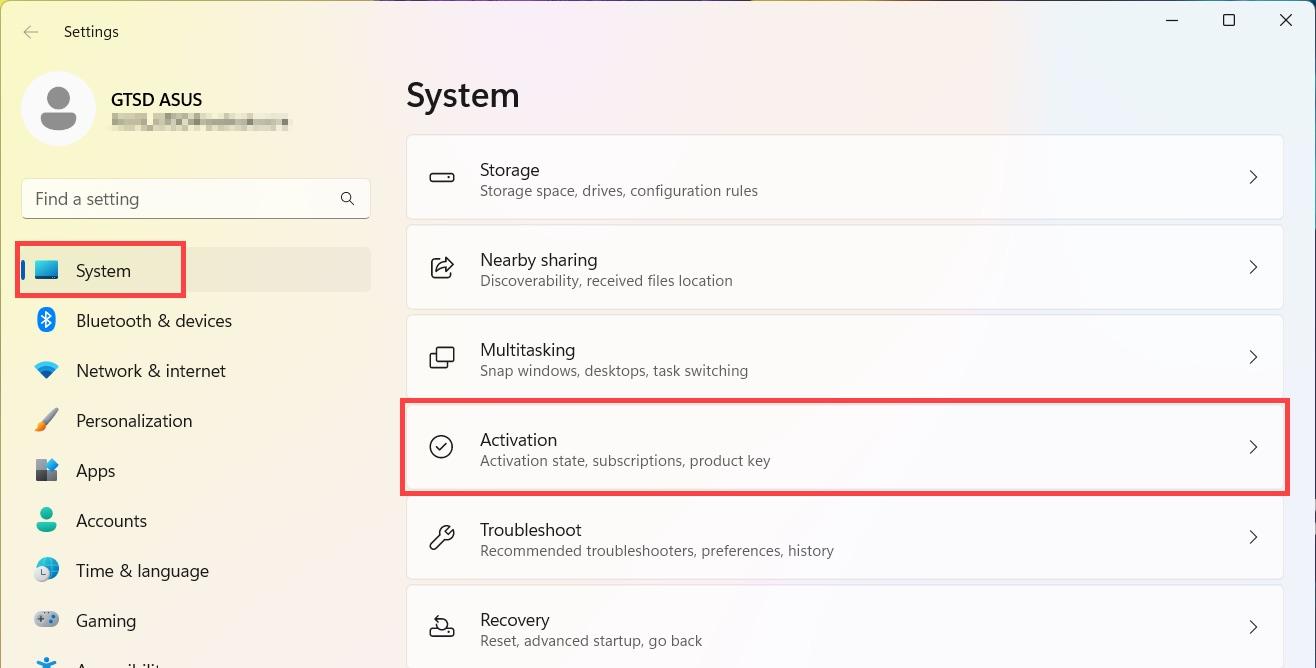
On the left, make sure System is selected. Then click Activation in the list on the right.
- 3
Open the Microsoft Store
You should see Windows 11 Home in S mode at the top. Expand the S mode section if it is not already open, then click Open Store.
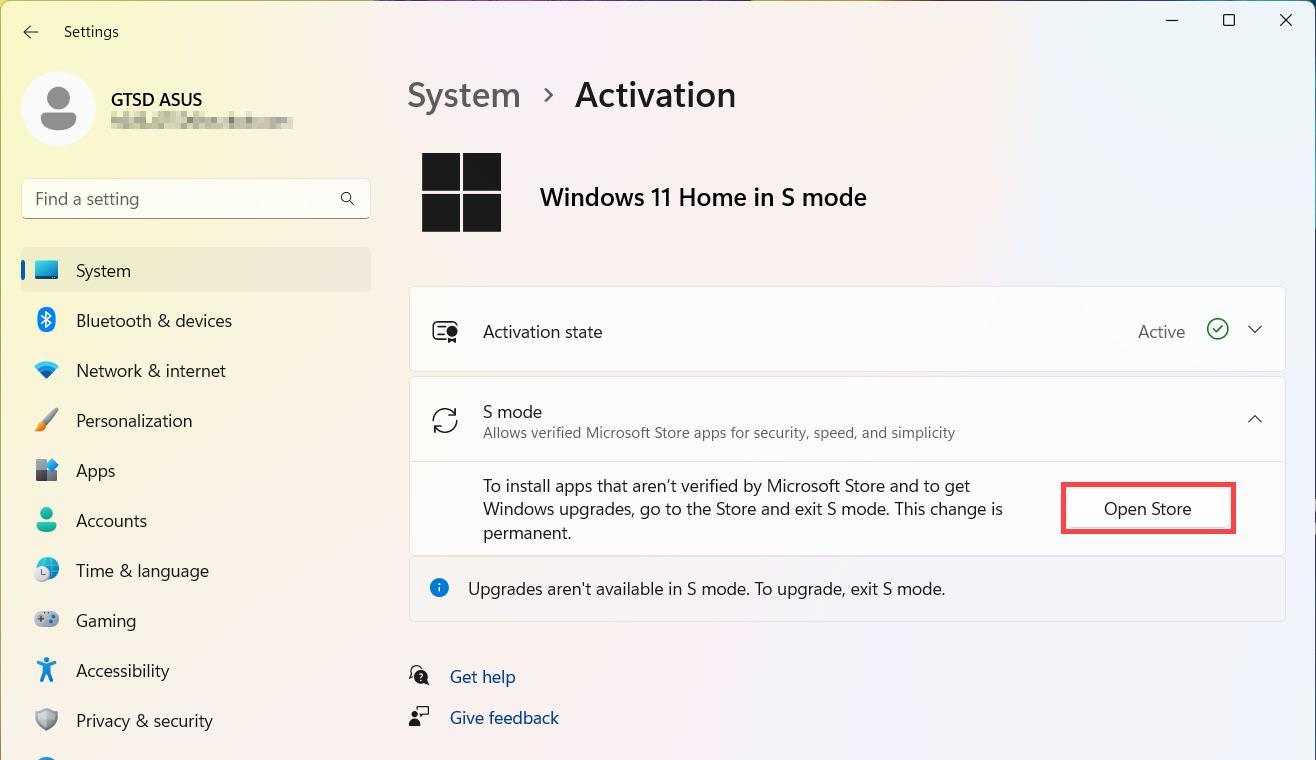
On some PCs this section is labeled “Switch to Windows 11 Home” or “Switch to Windows 11 Pro,” with a “Go to the Store” link instead. Either one is the right choice. Important: If you also see Upgrade your edition of Windows, do not click that. That is a paid upgrade (for example, Home to Pro) and will not take you out of S mode.
- 4
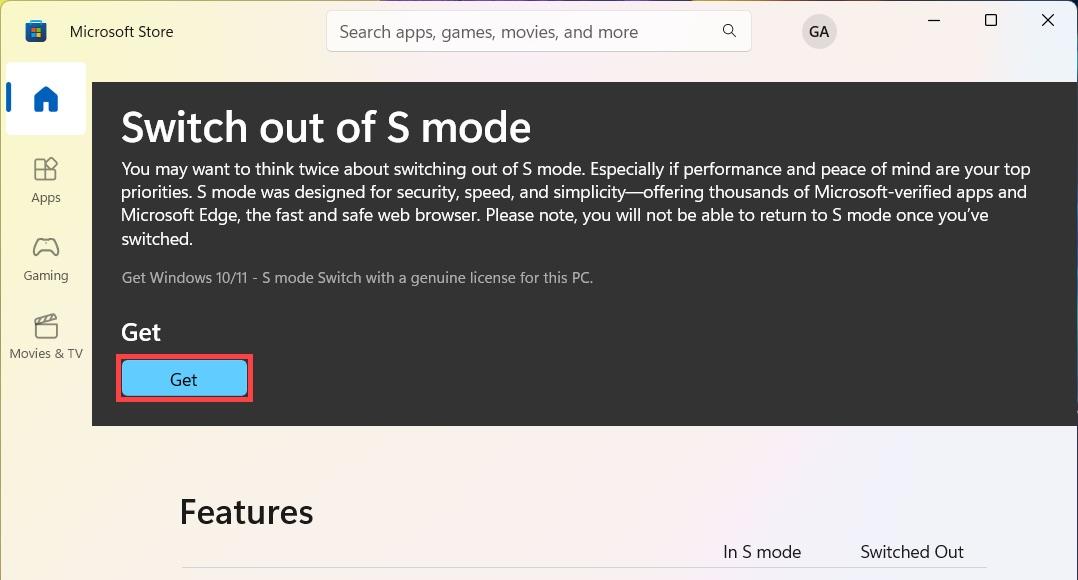
Click Get on the “Switch out of S mode” page
The Microsoft Store opens to a page named Switch out of S mode (or something similar). Click the blue Get button, then confirm if you are asked.
- 5
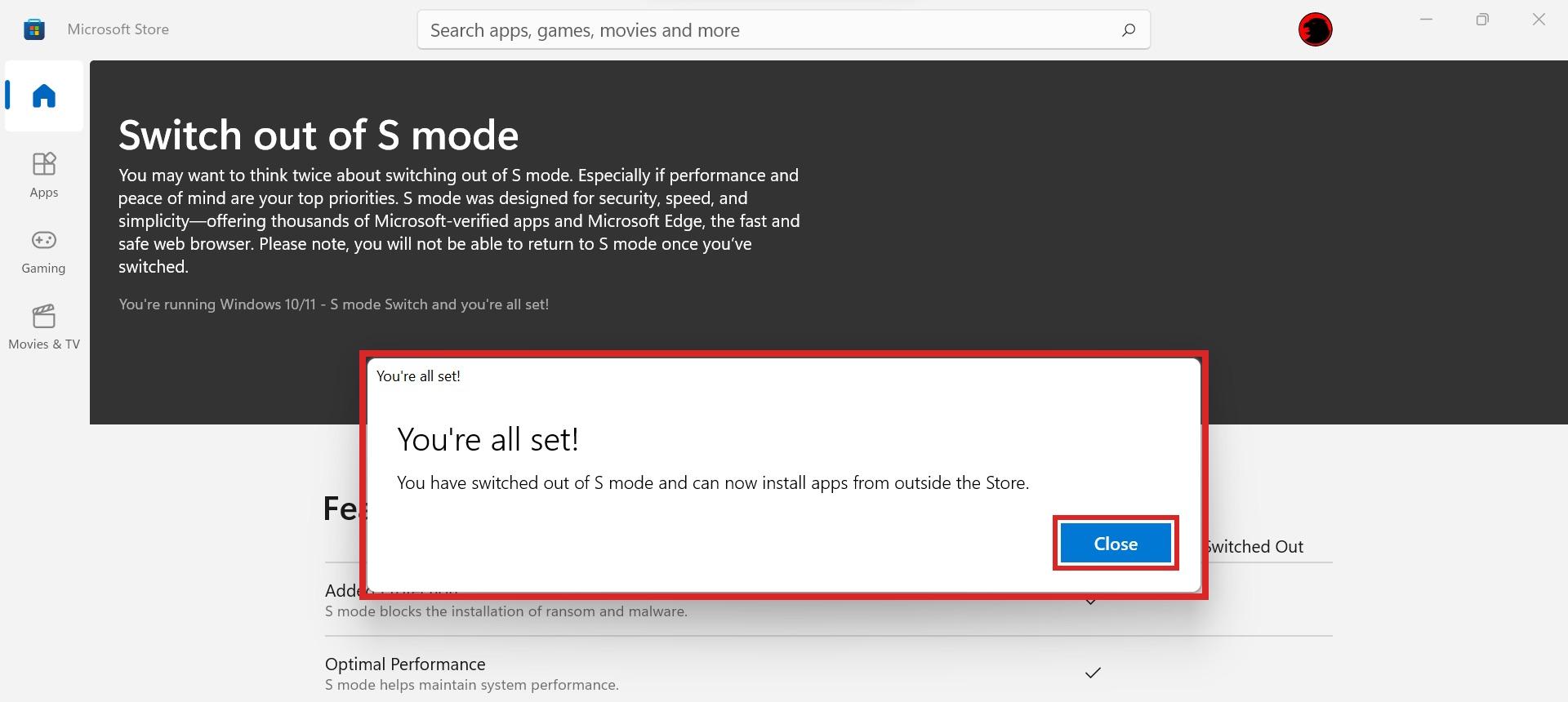
Wait for the confirmation, then click Close
When you see You're all set! the switch is complete. Click Close. You can now install apps from outside the Microsoft Store. You usually do not need to restart.
If something doesn't work
- The Store page won’t open or won’t finish loading
- Check that you are connected to the internet. Open the Microsoft Store and make sure you are signed in with a Microsoft account. Install any waiting updates in Settings → Windows Update, then try again. Restarting the PC often helps. You can also reset the Store: press Windows logo key + R, type
wsreset.exe, and press Enter. - The Get button is missing or grayed out
- Sign in to the Microsoft Store with a Microsoft account. Click the profile icon in the upper-right corner of the Store to check.
- I don’t see “S mode,” “Open Store,” or “Go to the Store”
- Your PC may already be out of S mode. Go to Settings → System → About and look under Windows specifications. If the edition does not say “in S mode,” you are done and can install apps as usual.
- The Store shows a price, or I can’t switch
- If you see a price, you probably opened “Upgrade your edition of Windows” by mistake. Go back and use the S mode or “Go to the Store” option instead. If the PC belongs to a school or company and switching is blocked, the organization may require S mode to stay on. Contact Mid Florida IT or your administrator.
Steps follow Microsoft's official guidance: “Windows 10 and Windows 11 in S mode FAQ” and “Switching out of S mode in Windows” (support.microsoft.com). Screenshots are real Windows 11 screens from ASUS Support and PCWorld; the keyboard photo is from Bitdefender Support. Your screen may look slightly different, but the button names will match.
Need a hand?
Call Mid Florida IT and a technician will walk you through it.